
How to Troubleshoot Common Wi-Fi Issues at Home

How to Troubleshoot Common Wi-Fi Issues at Home
In our modern digital life, a stable internet connection is as essential as electricity or running water. When your devices fail to connect or the signal drops unexpectedly, it can disrupt everything from work meetings to evening relaxation. Learning how to troubleshoot your home network is a valuable skill that can save you time, money, and frustration.
Most connection problems are caused by simple errors that can be resolved without needing professional technical support. By following a logical series of steps, you can identify the root cause of your connectivity issues and restore your access to the web.
Start with the basic power cycle
The most effective method to fix a network connection is often the simplest: restarting your equipment. This process clears the temporary memory of your hardware and allows it to re-establish a fresh connection with your service provider.
How to properly restart your modem and router
Begin by unplugging the power cable from both your modem and your router. Wait for at least 30 seconds before plugging the modem back in first. Allow it to fully boot up, which is indicated by the status lights remaining solid rather than blinking.
Once the modem is active, plug in your router and wait another two minutes. This sequence ensures that your router correctly receives the signal from the modem. Many minor software glitches are resolved through this simple power cycle.
Evaluate your physical environment
Even if your hardware is functioning correctly, environmental factors can severely degrade your wireless performance. Wi-Fi signals are radio waves that struggle to penetrate certain materials and can be blocked by everyday objects.
Optimizing router placement
Your router should be placed in a central, elevated location. Avoid hiding it inside cabinets, behind large televisions, or near thick concrete walls. These barriers act as shields that prevent the signal from reaching the rest of your home.
Furthermore, keep your router away from other electronics that emit interference. Devices like cordless phones, baby monitors, and even microwaves can disrupt the 2.4 GHz frequency band. Moving your router away from these appliances often results in an immediate increase in signal quality.
Check for signal congestion
In many residential areas, you are competing with your neighbors for wireless airwaves. If everyone in your apartment building is using the same channel for their Wi-Fi, the resulting traffic jam will slow down your connection significantly.
Understanding frequency bands
Most modern routers are dual-band, meaning they broadcast on both 2.4 GHz and 5 GHz frequencies. The 2.4 GHz band has a longer range but is more prone to interference. The 5 GHz band is much faster but has a shorter range and struggles more with walls.
If you are close to your router, try switching your device to the 5 GHz network. This is often less congested and provides a faster, more reliable experience for streaming or video calls. Check your router settings to see if it allows you to split these networks so you can manually select the best one for your device.
Review your device settings
Sometimes the problem is not with the network itself, but with the device trying to connect to it. A misconfigured network setting or an outdated driver can prevent a laptop or phone from maintaining a stable link.
Updating your software and drivers
Ensure that your operating system is up to date. Manufacturers frequently release patches that improve wireless compatibility and security. If you are using a PC, check the device manager to see if your network adapter driver requires an update.
You should also try “forgetting” the network on your device and reconnecting from scratch. This forces the device to re-authenticate with the router and can resolve issues related to saved passwords or corrupted connection profiles.
Identify hardware limitations
If you have multiple devices connected simultaneously, you might be exceeding the capacity of your hardware. Every router has a limit on how many concurrent connections it can handle effectively. If you have dozens of smart home devices, smartphones, and computers, your router may be struggling to manage the traffic.
When to consider an upgrade
If your router is more than five years old, it may lack the technology to support modern internet speeds. Older devices often use outdated Wi-Fi standards that cannot handle the bandwidth requirements of current streaming platforms and cloud services.
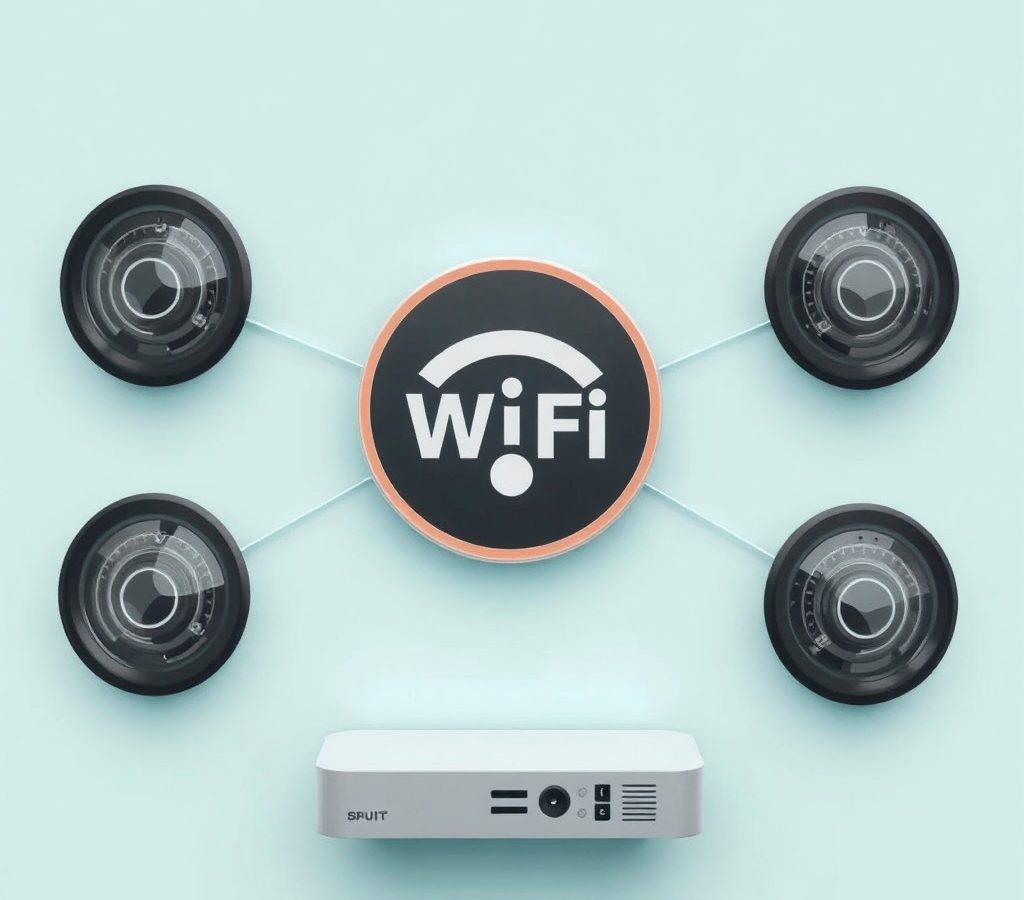
Consider upgrading to a mesh Wi-Fi system if you live in a large home. These systems use multiple access points to create a seamless blanket of coverage across your entire living space, eliminating the dead zones that traditional single-router setups often create.
Test your internet service provider
Before assuming your equipment is broken, verify that the internet signal is actually reaching your home. Your service provider may be performing maintenance in your area or experiencing a localized outage.
Using wired connections to isolate the issue
If possible, connect a computer directly to your modem using an Ethernet cable. If the connection works perfectly while wired but fails when wireless, the issue is definitely within your router or your Wi-Fi environment. If the wired connection also fails, contact your internet service provider to report the outage.
They can perform a remote diagnostic test on your line to see if there is an issue with the wiring outside your home. Having this information ready will make your conversation with customer support much more efficient.
Maintain your network security
A slow network is sometimes a symptom of unauthorized users. If your Wi-Fi password is weak, neighbors or passersby could be accessing your network without your knowledge, consuming your bandwidth and slowing down your own devices.
Securing your access point
Change your Wi-Fi password to a strong, unique combination of letters, numbers, and symbols. Ensure your router is using WPA3 or at least WPA2 encryption. You can log into your router’s administrative page to view a list of connected devices; if you see anything you do not recognize, change your password immediately.
Final steps for long-term stability
After you troubleshoot the immediate problem, take a few moments to document your settings. Keep your router administrative password in a safe place and create a schedule for regular firmware updates. Many modern routers can be configured to update themselves automatically, which is a great way to ensure long-term stability.
Remember that home networking is rarely a “set it and forget it” task. As you add more devices to your home, you may need to periodically adjust your channel settings or reorganize your router placement. Staying proactive will keep your connection fast and reliable.
If you have followed these steps and still experience frequent drops or slow speeds, there may be a deeper hardware failure. In that case, reach out to the manufacturer or your service provider to discuss a replacement. By systematically working through these solutions, you can handle almost any home connectivity challenge with confidence.