
How to Troubleshoot Common Home Wi-Fi Issues

How to Troubleshoot Common Home Wi-Fi Issues
We rely on our home wireless networks for almost everything today, from streaming high-definition video and attending virtual meetings to managing smart home devices. When that connection drops or slows to a crawl, it can be incredibly frustrating. Fortunately, most connectivity problems are caused by a few predictable culprits. You do not need to be an IT professional to troubleshoot your connection and get back online.
This guide breaks down the most frequent obstacles to a stable home network and provides practical steps to resolve them. By following a logical process, you can identify whether the problem lies with your hardware, your service provider, or simply the layout of your home.
Start with the basics of power and hardware
The most effective solution for many technical issues is often the simplest one. Before you dive into complex settings, you should address the physical hardware involved in your network.
Perform a proper power cycle
Electronic devices, especially routers and modems, can experience software glitches after running for long periods. A power cycle clears the temporary memory of these devices and forces them to re-establish a fresh connection with your Internet Service Provider (ISP).
To do this correctly, unplug the power cable from both your modem and your router. Wait at least 30 seconds before plugging the modem back in. Wait for the status lights on the modem to stabilize, which usually takes a minute or two, and then plug in your router. This sequence ensures the router recognizes the modem as the primary gateway to the internet.
Check all physical cable connections
Loose cables are a common cause of intermittent signal loss. Take a moment to inspect the coaxial cable or fiber optic line coming into your home, as well as the Ethernet cables connecting your modem to your router.
Ensure every connector is screwed in tight or clicked firmly into place. If you have pets or children, check the length of the cables for any signs of fraying or damage. Sometimes, a simple swap of an old Ethernet cable can resolve a bottleneck that has been limiting your speeds for months.
Optimize the placement and environment of your equipment
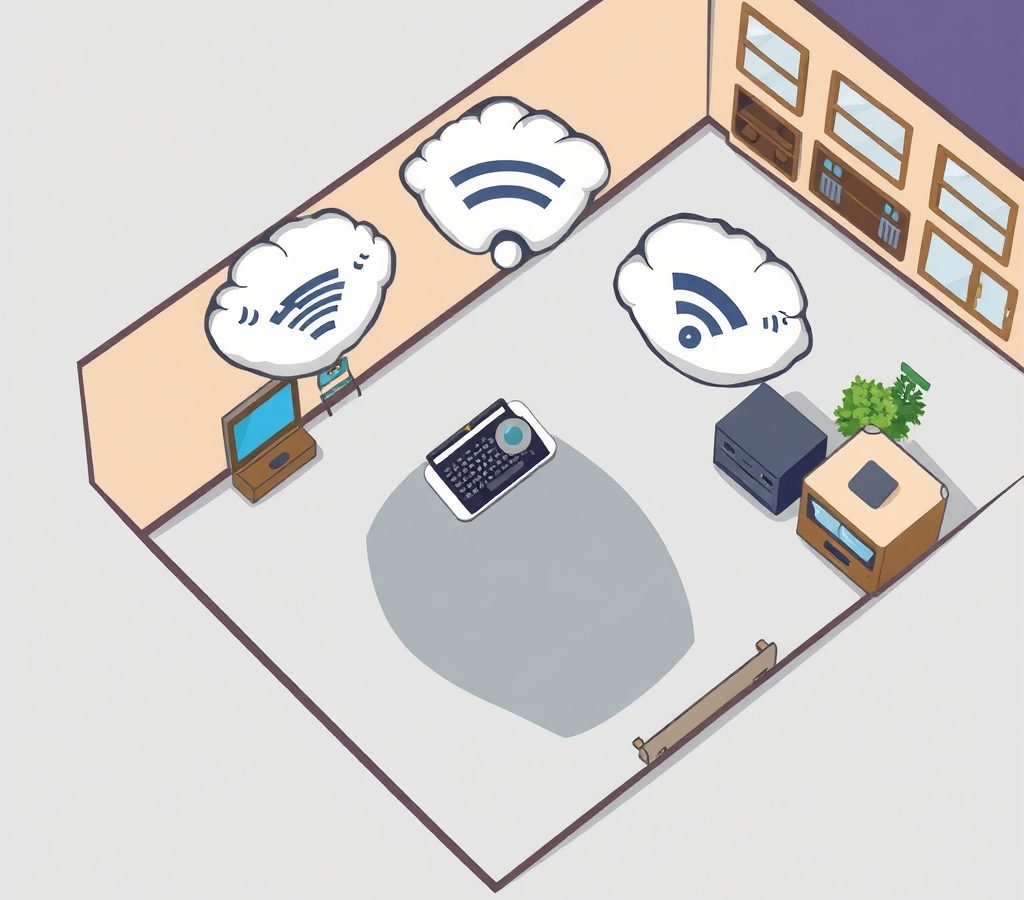
Wi-Fi signals are radio waves, and like any wave, they can be blocked, absorbed, or reflected by physical objects. Where you place your router is just as important as the quality of the hardware itself.
Find a central location for the router
Many people hide their routers inside cabinets, behind televisions, or tucked away in a corner of the basement. This is a mistake. The best location for a router is in an open, central area of your home, preferably on a shelf or table rather than on the floor.
Walls, floors, and ceilings made of dense materials like brick, concrete, or metal will significantly degrade your signal. By placing the router in a central room, you minimize the number of obstacles the signal must pass through to reach your devices in other parts of the house.
Keep the router away from interference
Your router is not the only device in your home emitting radio signals. Other electronics, such as cordless phones, baby monitors, and even microwave ovens, operate on the same 2.4GHz frequency as many Wi-Fi routers. This creates interference that can cause your connection to drop or slow down.
Keep your router at least a few feet away from these devices. If you find that your connection drops specifically when someone is using the microwave, you know you have an interference problem that requires moving your router to a different area.
Manage your network settings and frequency bands
Modern routers are dual-band or tri-band, meaning they broadcast signals on different frequencies. Understanding how to use these bands can help you balance the load of your network and improve overall stability.
Understand the difference between 2.4GHz and 5GHz
The 2.4GHz band has a longer range and is better at penetrating walls, but it is prone to interference and generally slower. The 5GHz band offers much faster data speeds and is less crowded, but its range is shorter and it struggles to pass through solid objects.
If you are close to your router, try connecting your high-bandwidth devices like gaming consoles or streaming boxes to the 5GHz network. Save the 2.4GHz band for devices that are further away or smart home items that do not require high speeds. If your router supports band steering, it may automatically move your devices to the best frequency, but sometimes manually selecting the band can resolve a persistent connection issue.
Check for channel congestion
If you live in an apartment complex or a dense neighborhood, your router might be fighting for space on the same channel as your neighbors’ routers. Most routers are set to “Auto” channel selection, which usually works well, but it can sometimes get stuck on a crowded channel.
You can log into your router’s administrative interface to manually change the wireless channel. Using a free Wi-Fi analyzer app on your smartphone can show you which channels are the least crowded in your area. Switching to a quieter channel often results in an immediate improvement in signal reliability.
Determine if the issue is with your ISP
Sometimes, the problem is not inside your home at all. If you have tried the steps above and are still experiencing outages, you should investigate your internet service provider.
Look for local service outages
Most ISPs provide a status page on their website or an app that lists reported service outages in your area. You can check this using your mobile phone’s cellular data. If there is a known outage, you simply have to wait for the provider to complete their repairs.
Contact support for a signal test
If your local area is clear but your internet remains unreliable, contact your ISP’s customer support. They can run a remote diagnostic test on your modem to see if the signal strength coming into your home is within the expected range. If the signal is weak or noisy, they may need to send a technician to check the lines outside your house or replace a faulty piece of equipment.
Update your firmware and consider hardware upgrades
Technology evolves quickly, and software updates are essential for maintaining security and performance. If your router is several years old, it might be time to consider whether it can still handle the demands of modern internet usage.
Keep your router firmware updated
Manufacturers release firmware updates to patch security vulnerabilities and fix bugs that cause connectivity issues. While many modern routers update automatically, you should check your router’s settings page periodically to ensure you are running the latest version.
If you are not comfortable navigating these settings, look for an “Auto-Update” checkbox and ensure it is enabled. Keeping your firmware current is a proactive way to maintain a stable connection.
Evaluate your equipment age
If you are using a router provided by your ISP that is five or more years old, it may not support the latest Wi-Fi standards. Newer routers offer better range, faster processing, and improved ability to handle multiple devices simultaneously.
If you have upgraded your internet plan to a higher speed but your router is outdated, you will never see the performance you are paying for. Investing in a modern router or a mesh Wi-Fi system can be a transformative upgrade for a home with multiple users and devices.
Conclusion
Most home Wi-Fi issues can be traced back to a simple physical obstruction, a temporary software glitch, or an outdated setting. By taking the time to systematically go through these steps, you can often identify the root cause and find a permanent solution without needing outside help.
Start by power cycling your equipment and checking your physical cable connections. Move on to optimizing the placement of your router and ensuring it is not suffering from signal interference. If problems persist, look into your frequency settings or contact your ISP to verify the health of your connection. Maintaining your home network does not have to be a daunting task; with a bit of patience and the right approach, you can ensure that your home remains connected, reliable, and ready for whatever you need to do online.